
Setting Up Key-Based Authentication for SSH Login
- blog
- February 4, 2026
Hey guys!
It’s Juke here.
This time, I set up key-based authentication for SSH connections on my Ubuntu server.
The version I configured is Ubuntu Server 22.04.3.
Alright, let’s get started.
Generating SSH Keys
This time, I’ll be using Tera Term for the work.
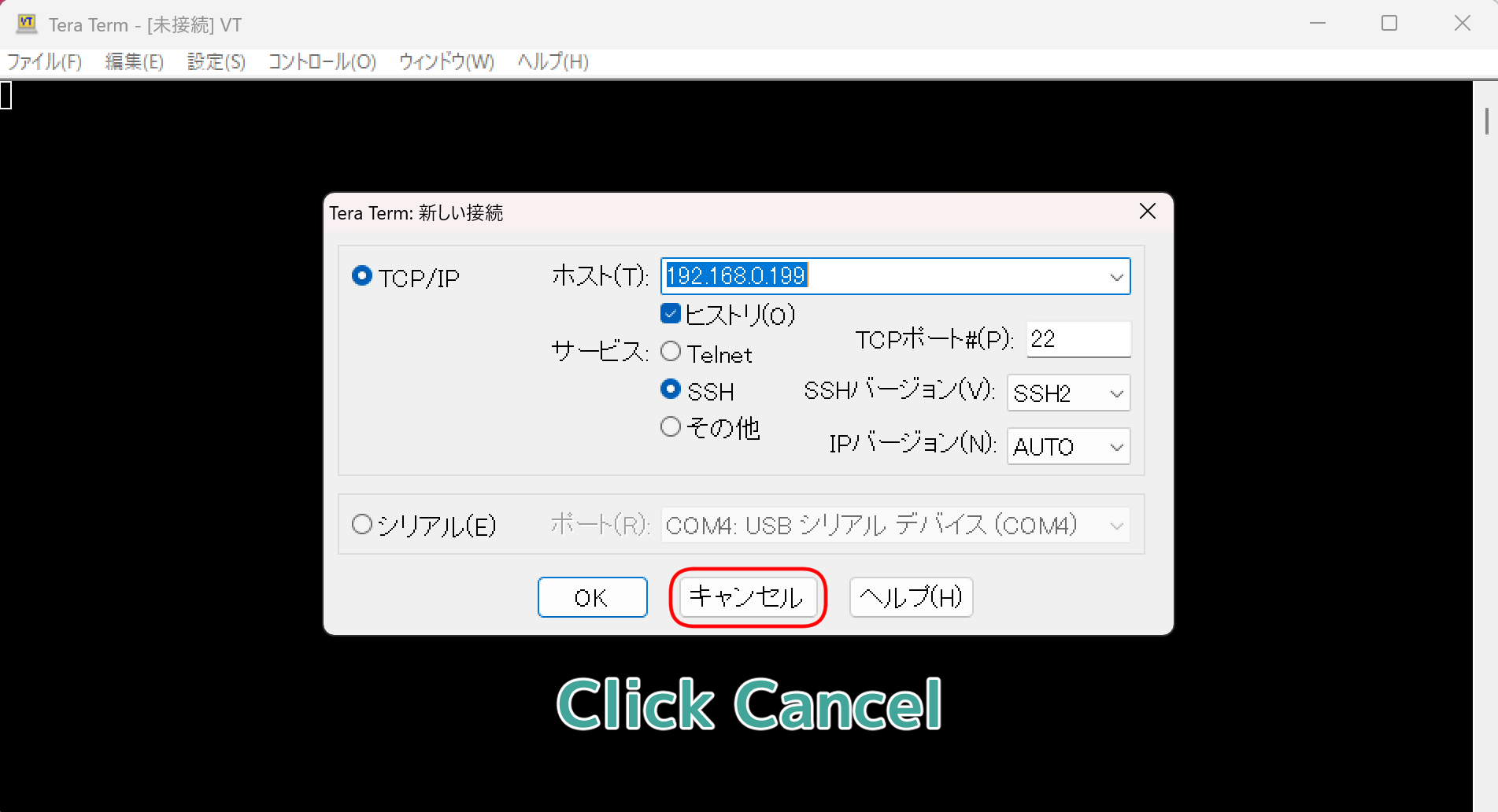
First, after opening Tera Term, cancel the connection once.
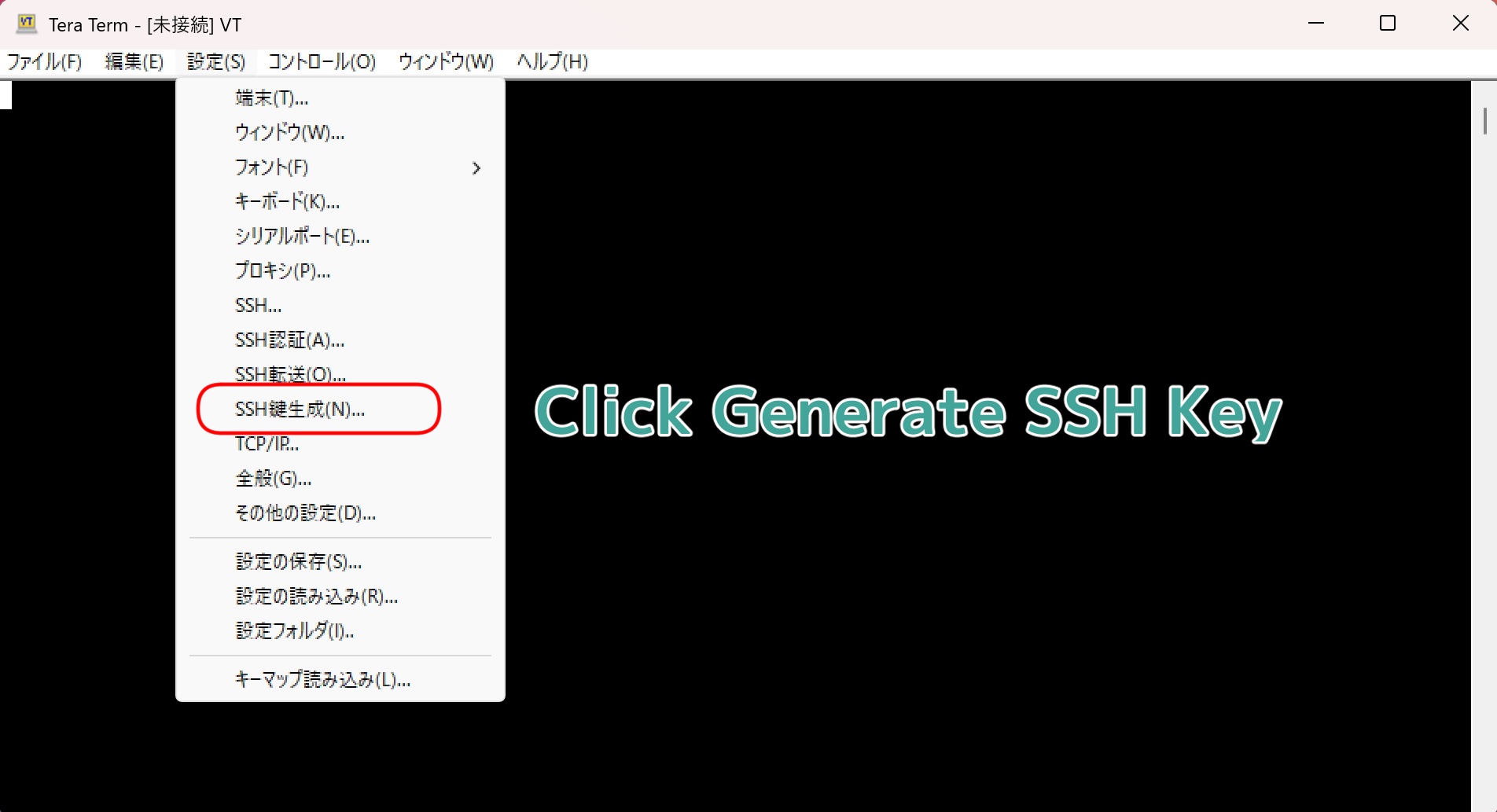
Click “Generate SSH Key” from the Settings menu bar…
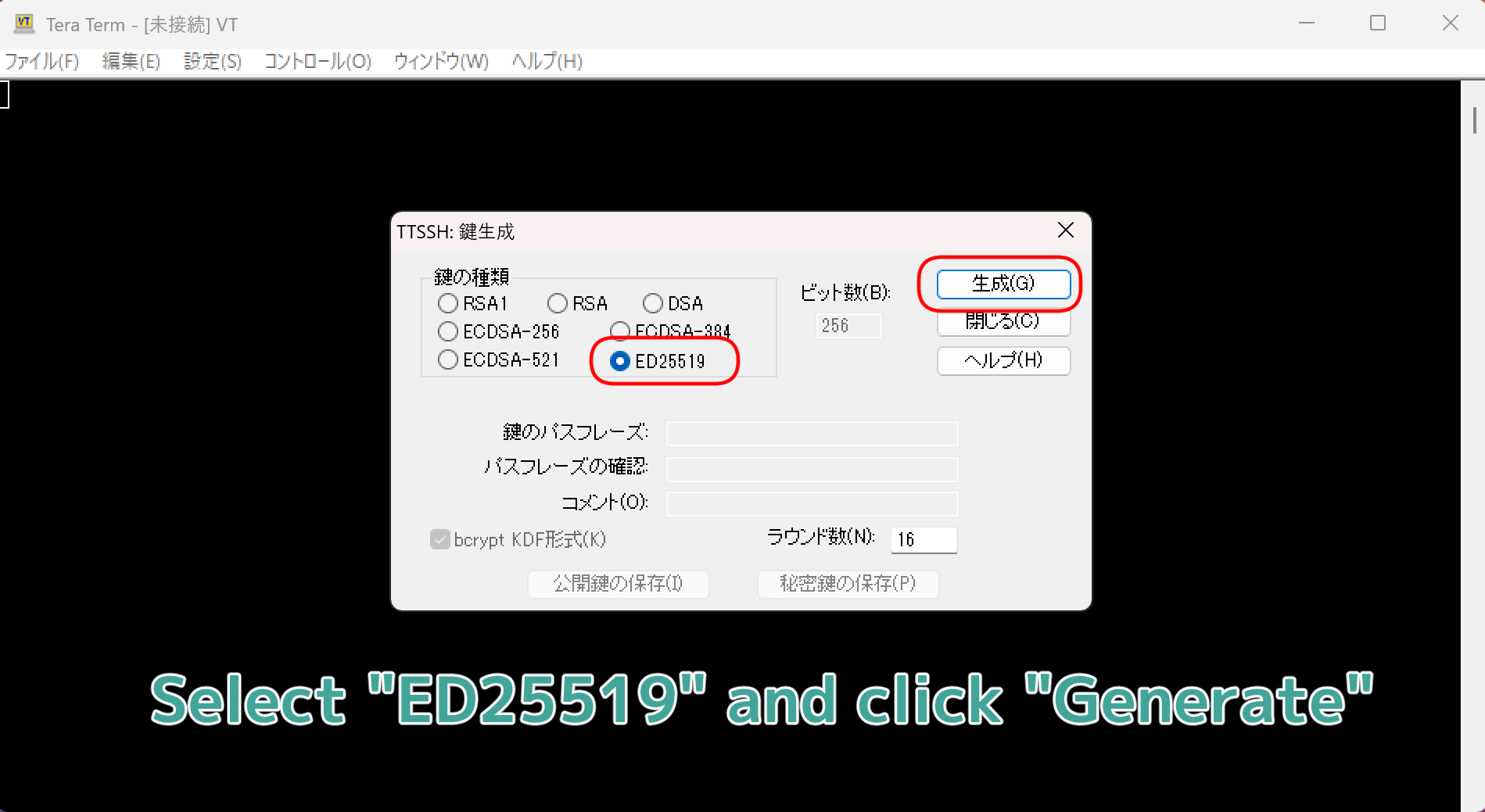
Select “ED25519” for the key type and click Generate.
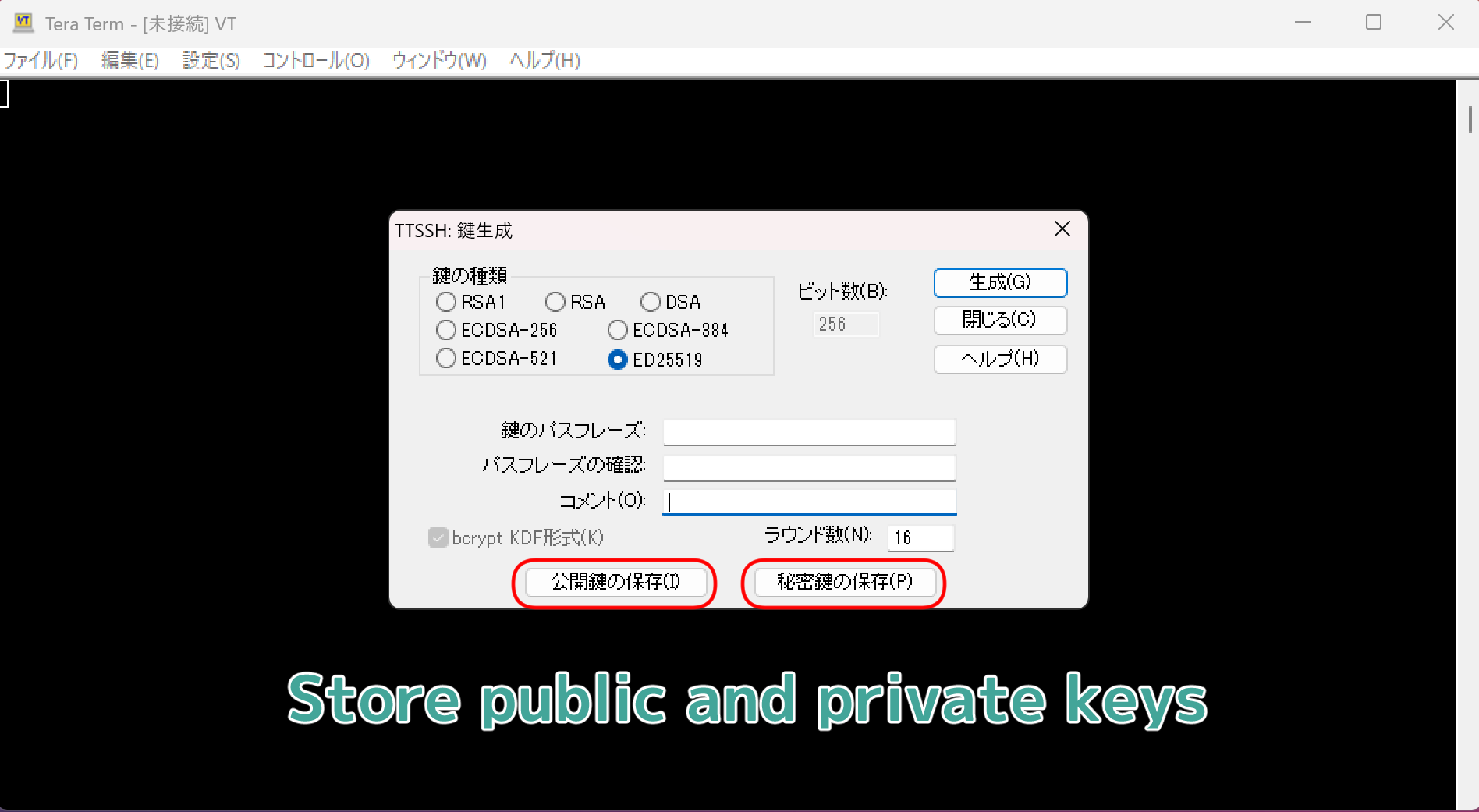
This will save your SSH public key and private key, so save them.
Since you’re using key authentication, losing the keys will prevent you from logging into the server, so be careful not to lose them.
After saving the public and private keys, close Tera Term once.
Setting Up the SSH Public Key
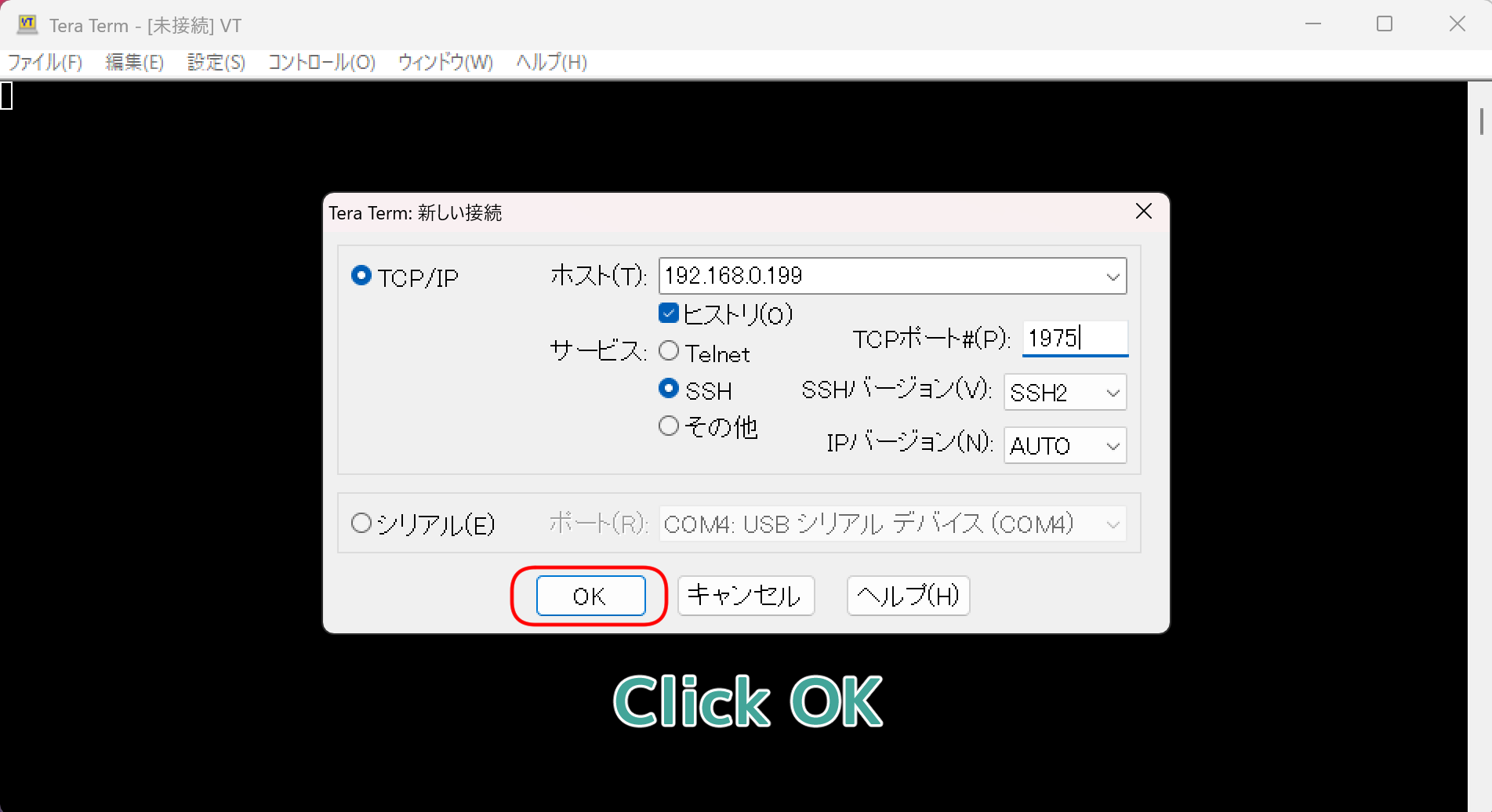
When you reopen Tera Term, click “OK” to log in.
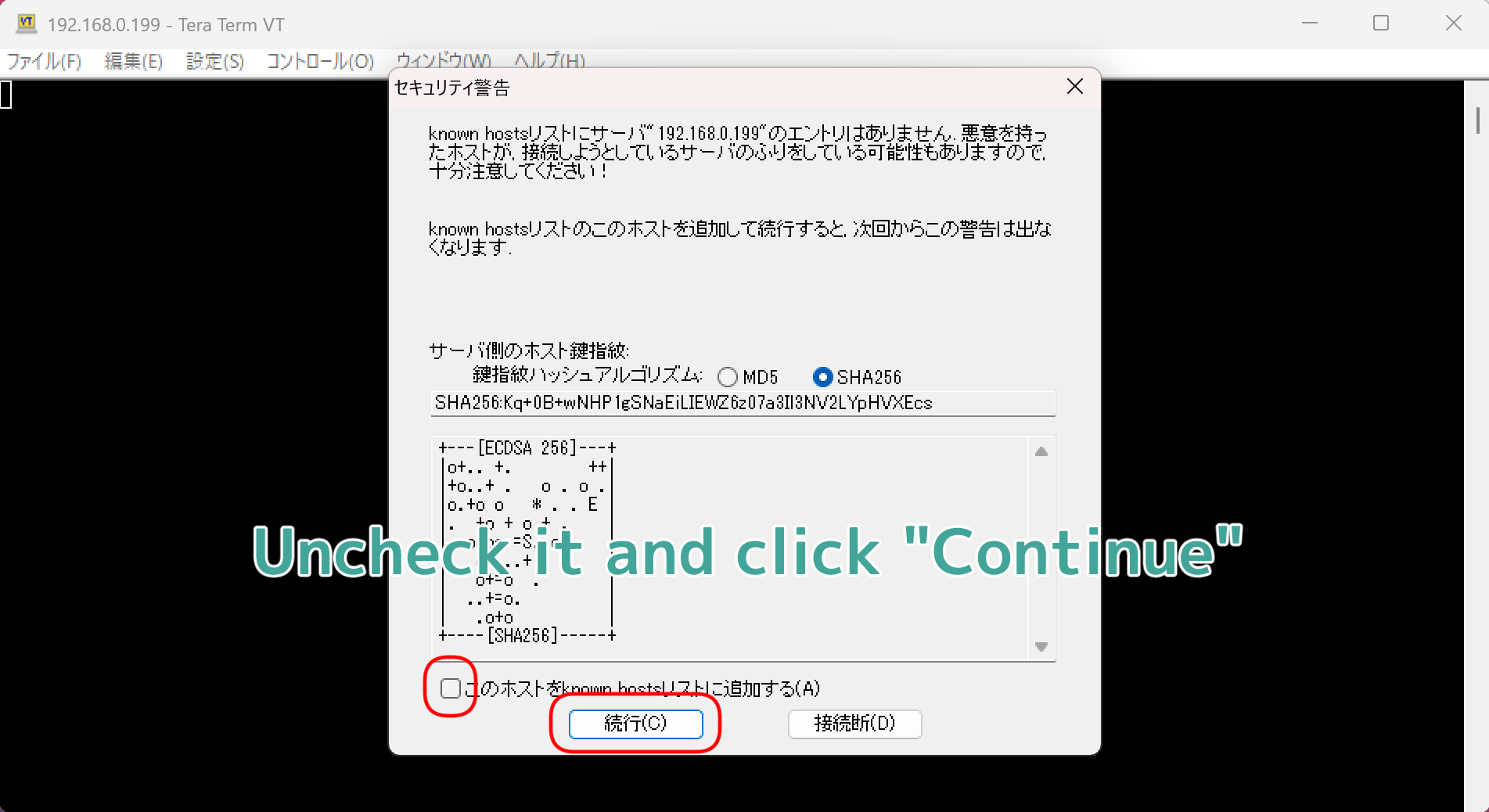
When logging in, please uncheck “Add this host to the known hosts file (A)” and click “Continue”.
After that, log in normally using password authentication.
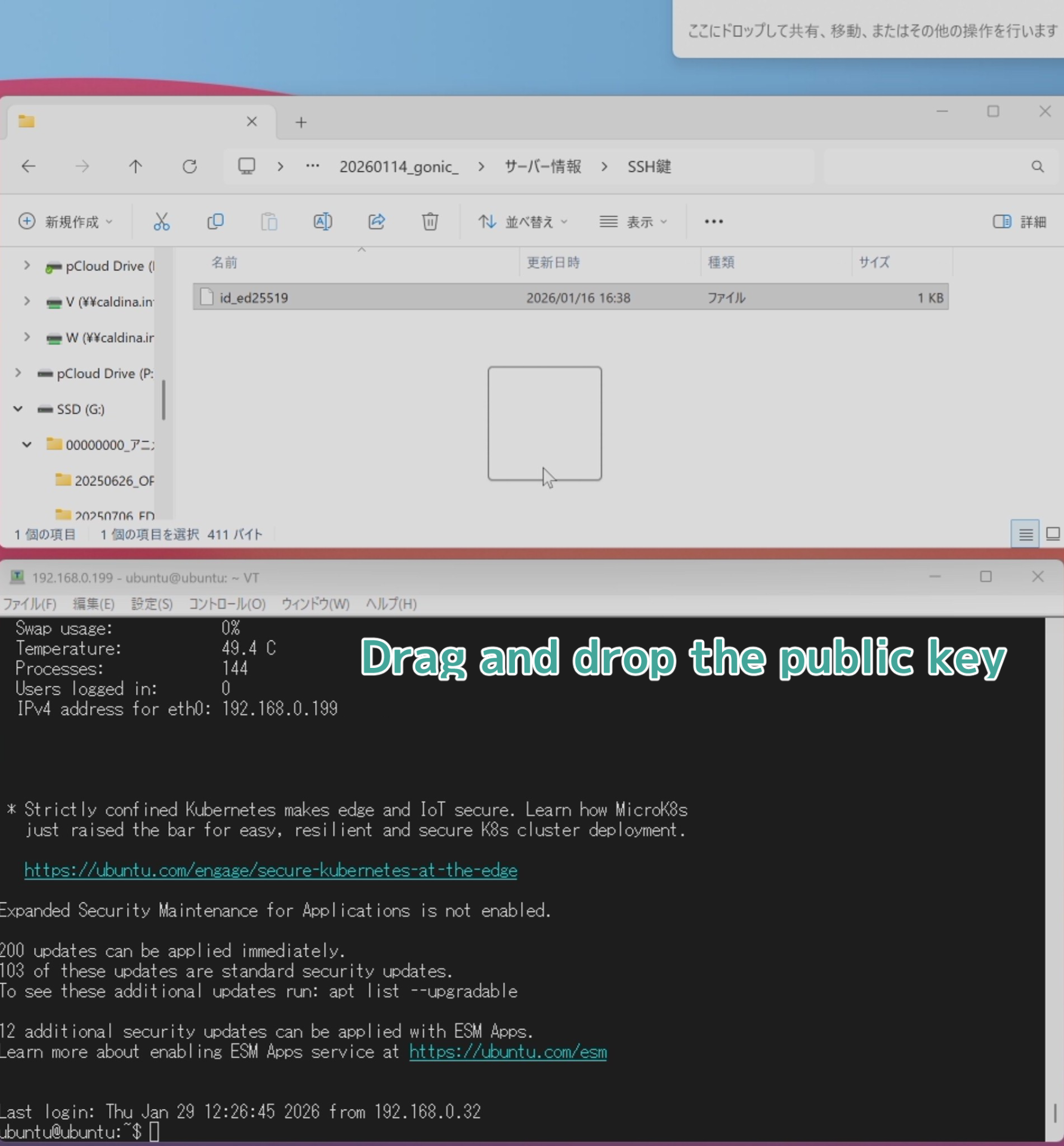
Once logged into the server, drag and drop the public key you saved earlier into Tera Term.
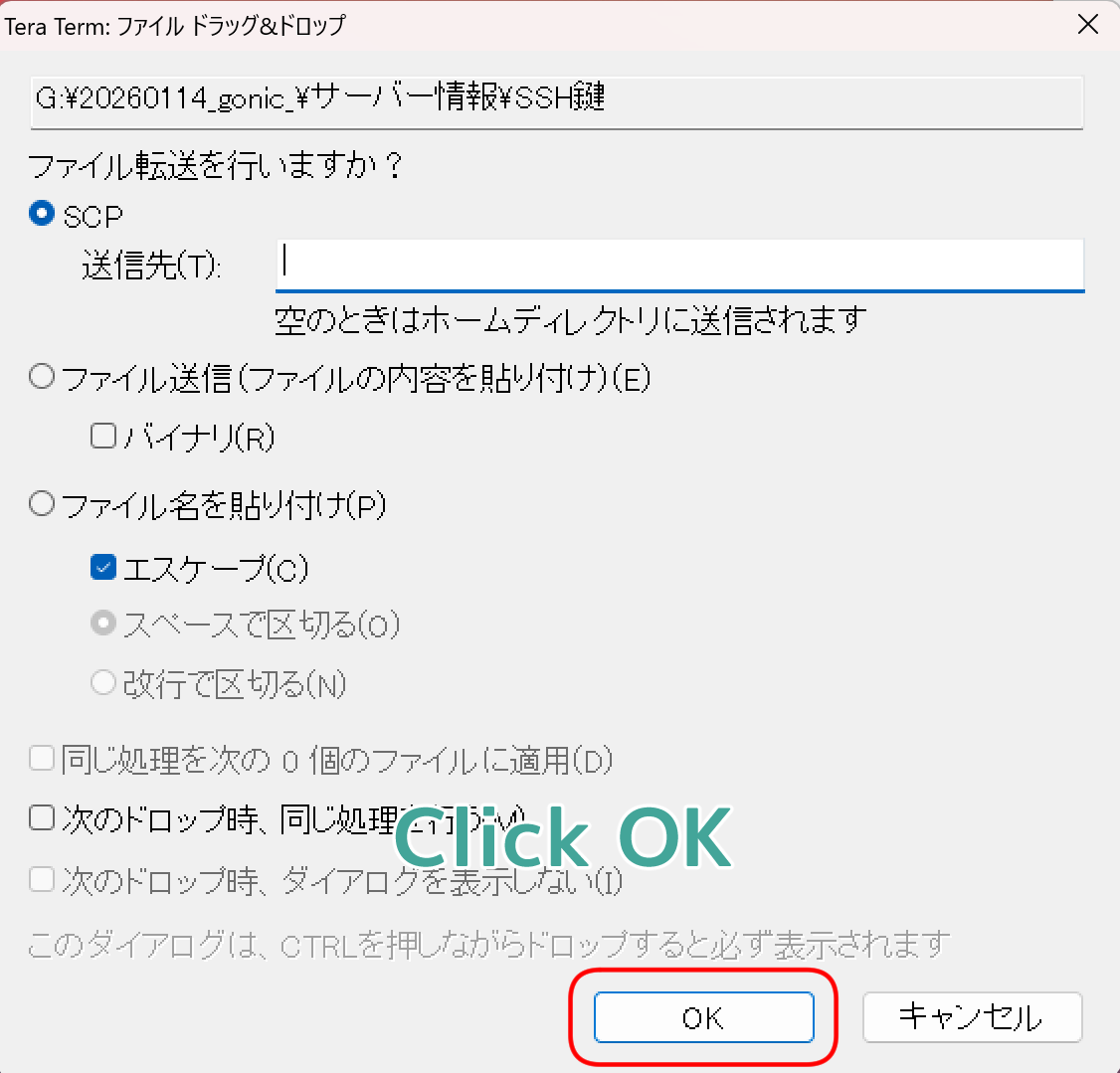
A dialog like the one above will appear. Just click “OK” without doing anything.
Next, we’ll move the public key we placed on the server into the .ssh folder. But first, let’s back up the existing authorized_keys file in the .ssh folder.
mv .ssh/authorized_keys .ssh/default_authorized_keysRename id_ed25519.pub and move it into the .ssh folder…
sudo mv id_ed25519.pub .ssh/authorized_keysChange the file and directory permissions
sudo chmod 700 .ssh
sudo chmod 600 .ssh/authorized_keys
Modifying Configuration Files
Before changing settings, back up the original configuration files.
sudo cp /etc/ssh/sshd_config /etc/ssh/backup_sshd_configNow edit the configuration file.
This time we’re using vi as the editor, but feel free to use whichever editor you find easiest.
sudo vi /etc/ssh/sshd_configWe’ll edit the following three points:
The port number, disabling root login, and disabling password authentication.
Port 1975
PermitRootLogin no
PasswordAuthentication no
After saving the configuration file, restart ssh.
- For Ubuntu 22
sudo systemctl restart sshd- For Ubuntu 24
sudo systemctl restart sshVerify Operation
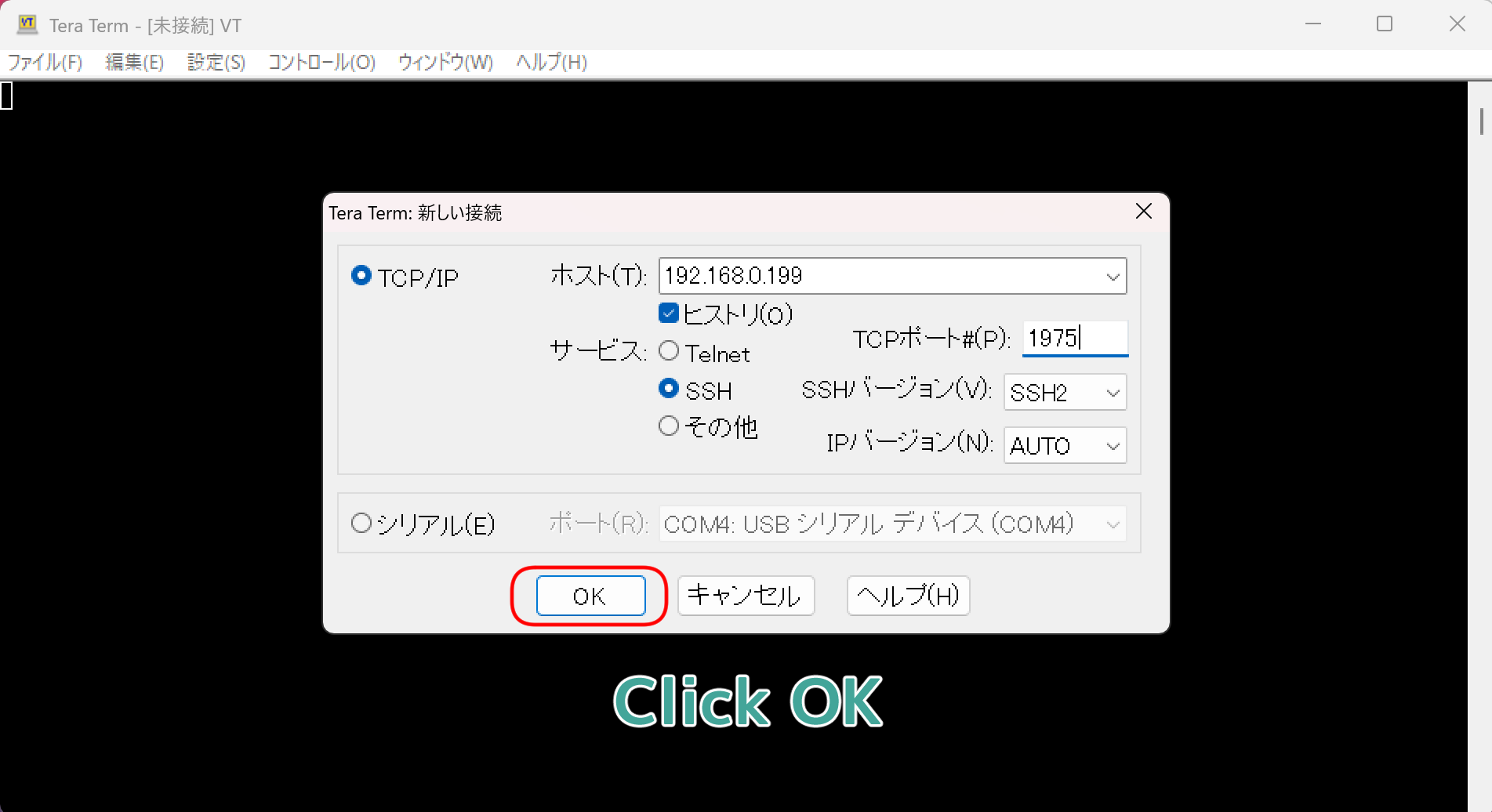
Open Tera Term and log in as usual.
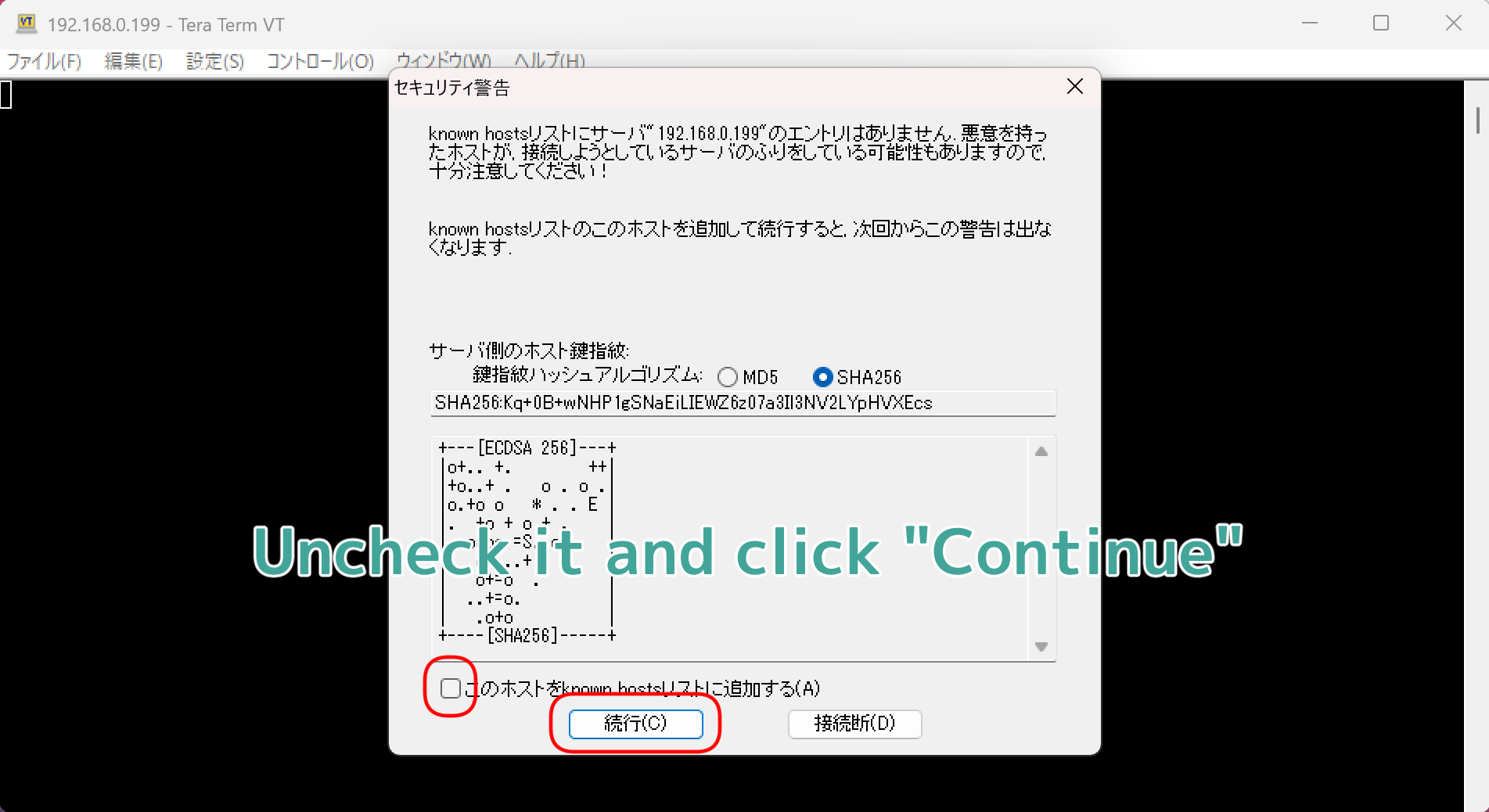
Again, make sure the checkbox for “Save this host to the known hosts list (A)” is unchecked…
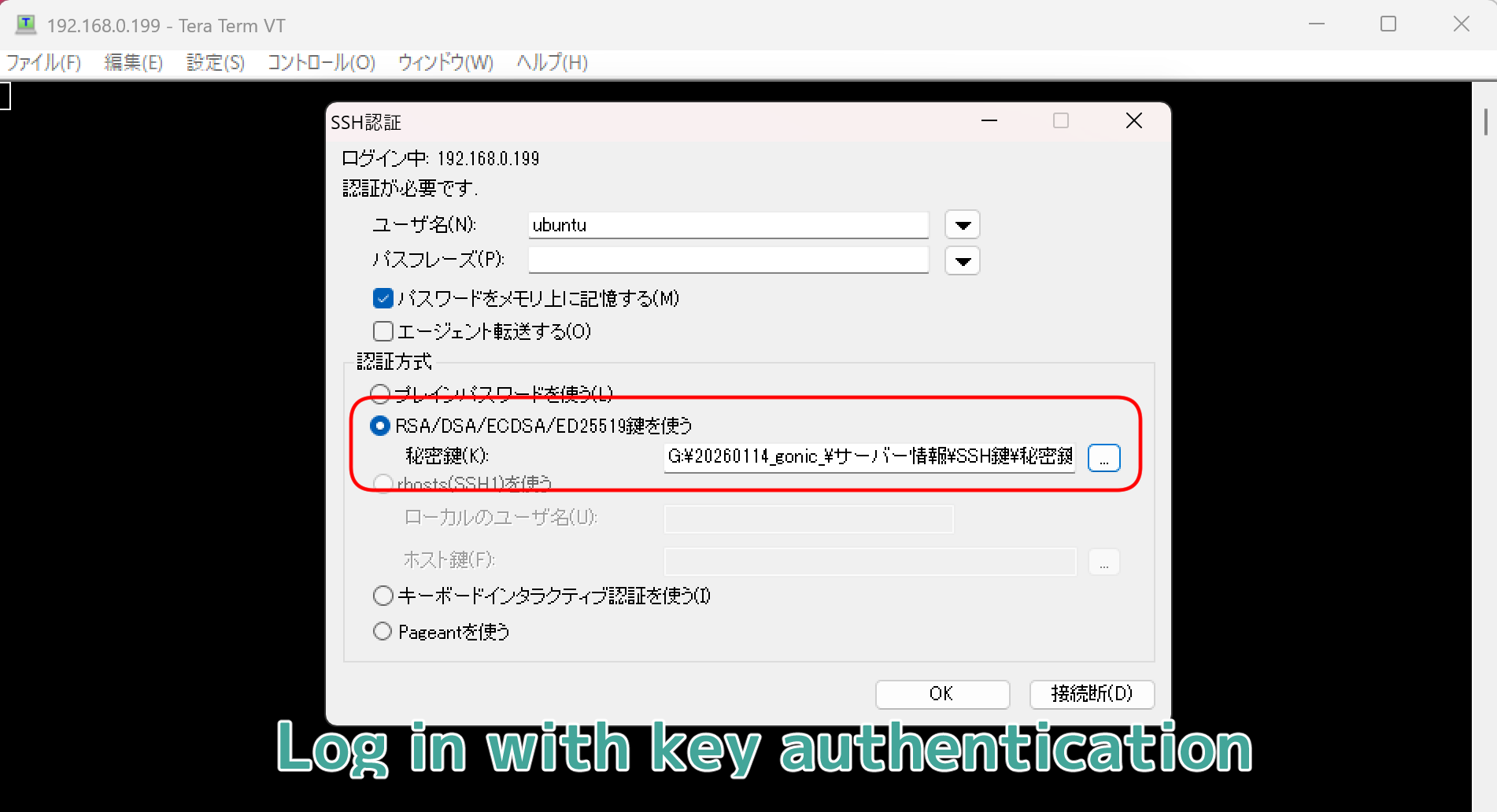
This time, try logging in by selecting the saved private key instead of entering the password.
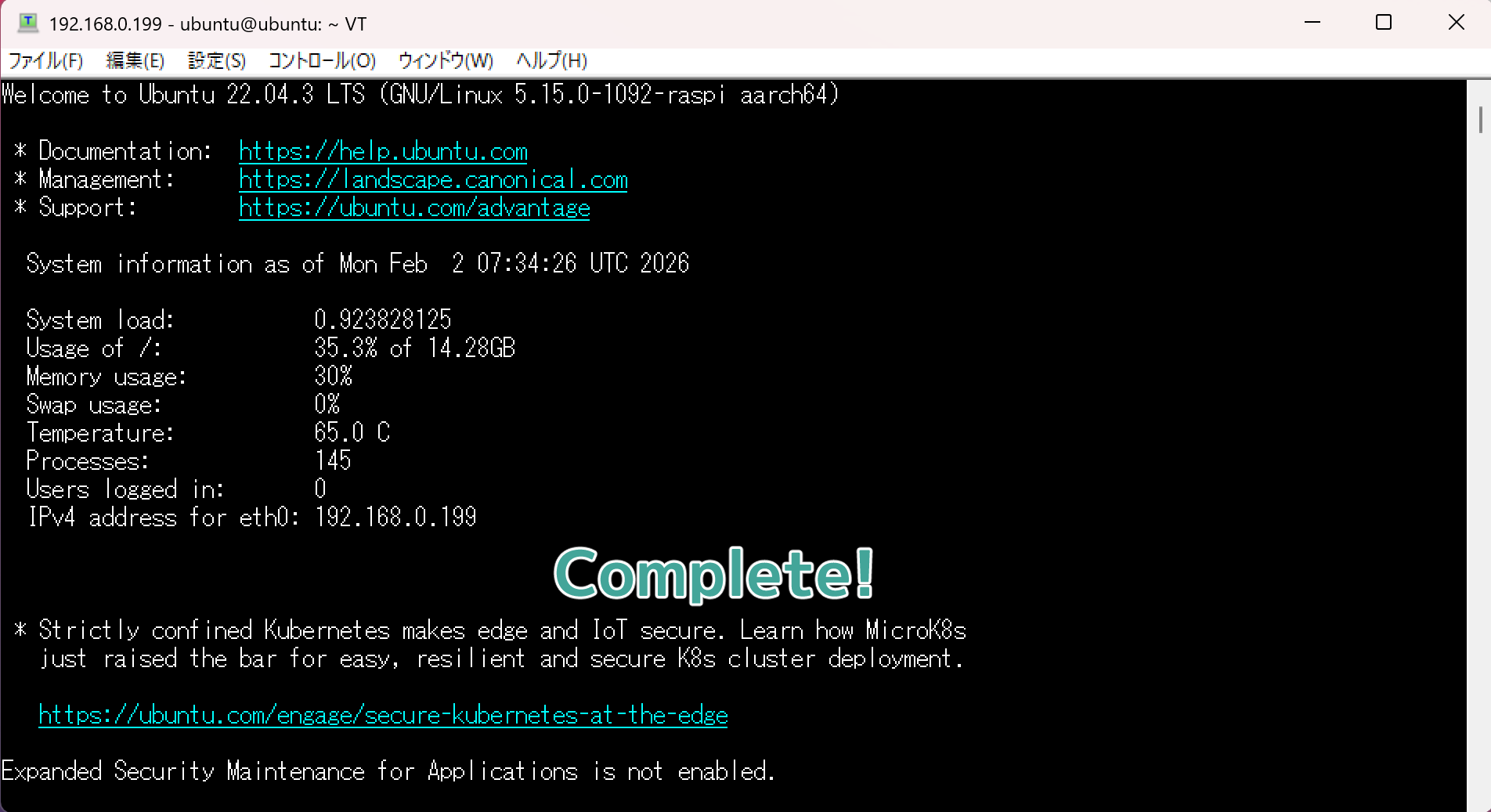
If you can log in without any issues, your key authentication setup is complete!
Note
Machine translation is used for the sentence in this site.
Therefore, the sentence may contain mistranslations.
This site is not intended to cause you any discomfort.
Should any mistranslations appear in the site, I kindly ask for your understanding.